

Overview
Qovery simplifies Azure Kubernetes Service (AKS) management by:- Automating cluster creation and configuration
- Managing networking, load balancers, and DNS
- Providing built-in monitoring and logging
- Handling rolling updates and scaling
- Securing your infrastructure with best practices
Fully Managed
Qovery creates and manages your AKS cluster automatically
Production Ready
Best practices for security, networking, and reliability
Auto-Scaling
Automatic node scaling based on workload
Multi-Region
Deploy across Azure regions worldwide
Prerequisites
Before you begin, ensure you have:Azure Account: Active Azure subscription with admin access
Azure Tenant: Access to an Azure Active Directory tenant
Qovery Account: Free account at
console.qovery.com
Permissions: Ability to create service principals and assign roles
Required Azure Permissions
Your Azure account needs these permissions:- Create and manage AKS clusters
- Create service principals
- Assign contributor role
- Manage virtual networks
- Create resource groups
Step 1: Create Azure Credentials
Qovery needs credentials to manage resources in your Azure subscription. We use a secure service principal approach that avoids storing long-lived credentials.Get Your Azure IDs
1
Find Tenant ID
- Go to Azure Portal
- Navigate to Azure Active Directory
- Click Overview in the left sidebar
- Copy your Tenant ID (also called Directory ID)
2
Find Subscription ID
- In Azure Portal, go to Subscriptions
- Click on the subscription you want to use
- Copy the Subscription ID from the overview page
Generate Installation Command
1
Start Cluster Creation
- Go to Qovery Console
- Go to your organization overview and click on the Clusters tab
- Click Create Cluster
- Select Azure as the cloud provider
2
Enter Azure Details
- Enter your Tenant ID
- Enter your Subscription ID
- Click Next
3
Copy the Command
Copy the generated command to your clipboard.
This command creates a service principal using Azure’s app registration.
Run Installation Script
1
Open Azure Cloud Shell
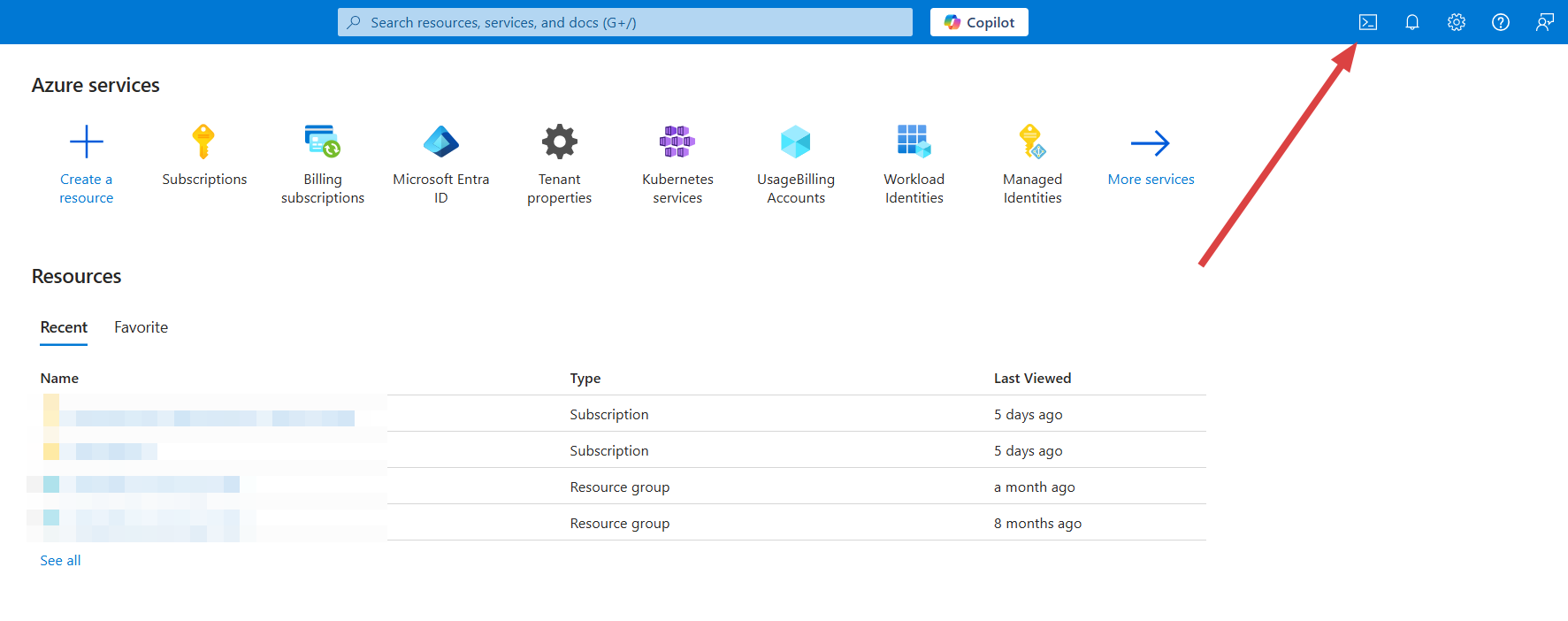
- In Azure Portal, click the Cloud Shell icon (>_) in the top navigation bar
-
Important: Select Bash mode (not PowerShell)
2
Run the Command
- Paste the command from Qovery into Azure Cloud Shell
- Press Enter
- Review the subscription details displayed
- The script will create a service principal and assign necessary permissions. For a detailed breakdown of every permission and why it’s needed, see the Azure IAM Permissions Reference
3
Verify in Qovery
The credentials are automatically linked to your Qovery organization.
Source: Content above is maintained in
/snippets/azure-credentials.mdx.
Update snippet first, then copy to all usage locations.Step 2: Configure Your Cluster
Now configure your AKS cluster settings in the Qovery console.Basic Configuration
1
Cluster Name
Choose a descriptive name for your cluster:
production-aksstaging-azuredev-aks-eastus
2
Select Region
Choose an Azure region closest to your users:North America:
eastus- East US (Virginia)eastus2- East US 2 (Virginia)westus2- West US 2 (Washington)centralus- Central US (Iowa)
westeurope- West Europe (Netherlands)northeurope- North Europe (Ireland)uksouth- UK South (London)francecentral- France Central (Paris)
southeastasia- Southeast Asia (Singapore)eastasia- East Asia (Hong Kong)japaneast- Japan East (Tokyo)australiaeast- Australia East (Sydney)
Choose a region that complies with your data residency requirements.
3
Attach Credentials
Select the Azure credentials you created in Step 1.If you need to create new credentials, click Add new credentials and repeat Step 1.
Node Pool Configuration
Configure the VM sizes for your AKS node pools:VM Size Recommendations
VM Size Recommendations
Development/Testing:
Standard_B2s(2 vCPU, 4GB RAM)Standard_B2ms(2 vCPU, 8GB RAM)Standard_B2als_v2(2 vCPU, 4GB RAM)
Standard_D2s_v3(2 vCPU, 8GB RAM)Standard_D4s_v3(4 vCPU, 16GB RAM)
Standard_D2ads_v5(2 vCPU, 8GB RAM)Standard_D4ads_v5(4 vCPU, 16GB RAM)Standard_D8ads_v5(8 vCPU, 32GB RAM)
Standard_D2ads_v6(2 vCPU, 8GB RAM)Standard_D4ads_v6(4 vCPU, 16GB RAM)Standard_D4alds_v6(4 vCPU, 8GB RAM)
Standard_F2s_v2(2 vCPU, 4GB RAM)Standard_F4s_v2(4 vCPU, 8GB RAM)
-
Standard_E2s_v3(2 vCPU, 16GB RAM) -
Standard_E4s_v3(4 vCPU, 32GB RAM) -
Standard_E2ads_v5(2 vCPU, 16GB RAM)
Availability Zones
Availability Zones
All Azure regions supported by Qovery have 3 availability zones (zones 1, 2, and 3).Qovery automatically spreads node groups across all available zones for high availability:
- Zone 1, Zone 2, Zone 3 — each gets a dedicated node group
- Nodes are evenly distributed across zones with any remainder assigned to Zone 1
- This provides zone-level redundancy and automatic failover at no extra cost
Networking Configuration
Qovery automatically configures Azure networking: What’s Created:- Virtual Network (VNet) with CIDR
10.0.0.0/16 - Public subnet for load balancers
- Private subnets for nodes
- NAT Gateway for outbound internet access
- Network Security Groups (NSGs)
- Azure Load Balancer for ingress
Advanced Networking Options
Advanced Networking Options
VNet Peering:
Configure VNet peering to connect to existing Azure resources (databases, storage, etc.).Custom CIDR:
Change the default VNet CIDR if it conflicts with your existing networks.Private Cluster:
Enable private cluster mode to remove public API endpoints (requires VPN or ExpressRoute).
Step 3: Deploy Your Cluster
1
Review Configuration
Review all your cluster settings:
- Cluster name
- Region
- VM sizes
- Networking options
2
Create and Deploy
Click Create and Deploy
You can start configuring applications immediately! The cluster will be available once deployment completes.
3
Monitor Progress
Watch the deployment progress in the Qovery console.Timeline:
- 0-5 min: Creating Azure resources (Resource Group, VNet, NSGs)
- 5-10 min: Provisioning AKS control plane
- 10-15 min: Creating node pools
- 15-20 min: Installing Qovery components (ingress, monitoring, etc.)
- 🟡 Creating: Infrastructure provisioning in progress
- 🟢 Running: Cluster is ready to use
- 🔴 Error: Check logs for troubleshooting
4
Verify Installation
Once complete, your cluster will appear in the cluster list with status Running.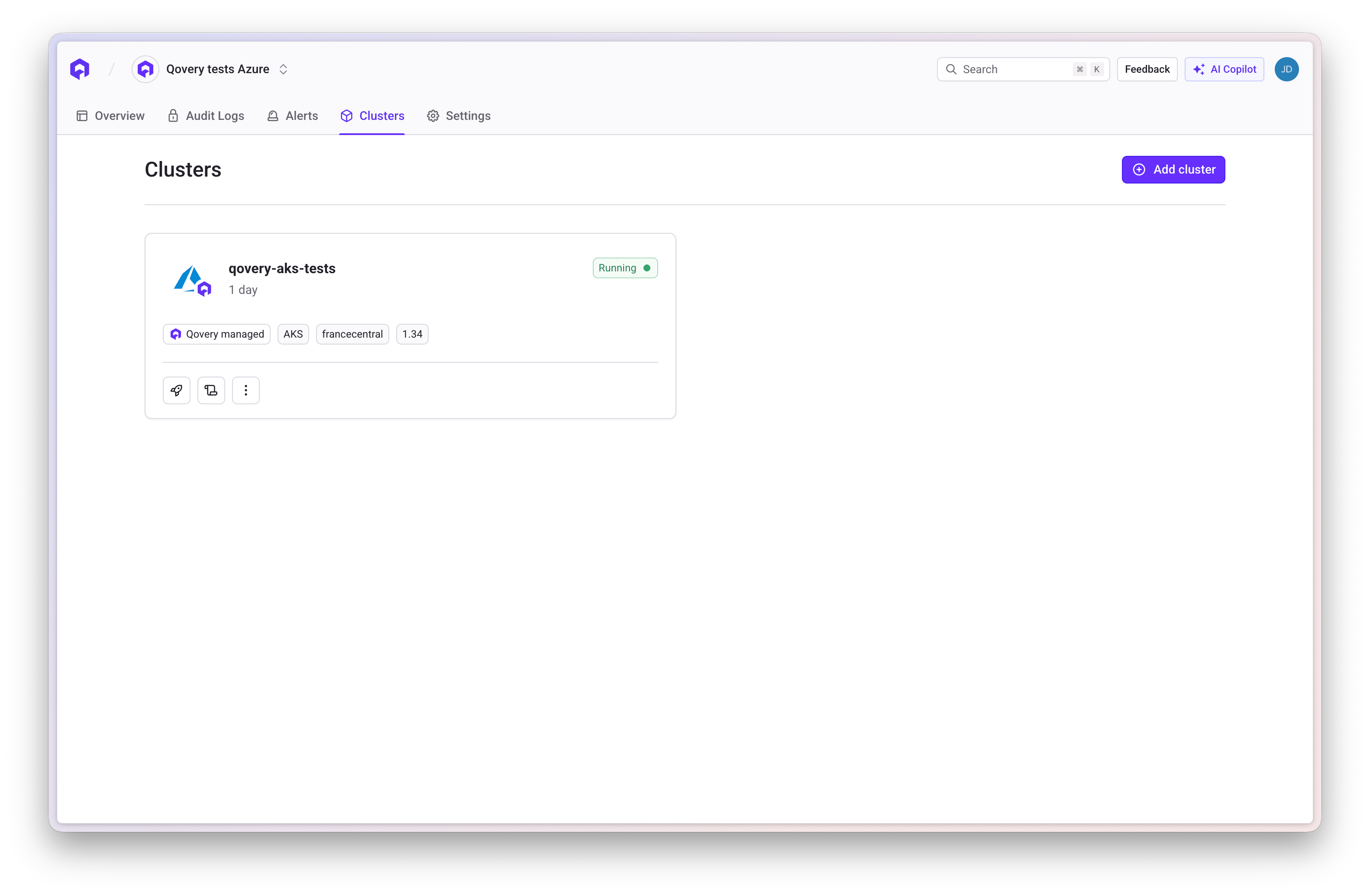
What Gets Created
Qovery automatically provisions these Azure resources:Core Infrastructure
Core Infrastructure
- Resource Group: Dedicated group for all cluster resources
- AKS Cluster: Managed Kubernetes cluster
- Virtual Network: Isolated network for your cluster
- Subnets: Public and private subnets
- NAT Gateway: Outbound internet connectivity
- Network Security Groups: Firewall rules
Networking
Networking
- Azure Load Balancer: Layer 4 load balancing
- Application Gateway (optional): Layer 7 load balancing
- Public IP Addresses: For ingress traffic
- Private DNS Zone: Internal service discovery
Compute
Compute
- Virtual Machine Scale Sets: Auto-scaling node pools
- Managed Disks: Persistent storage for nodes
- System Node Pool: Kubernetes system components
- User Node Pools: Your application workloads
Qovery Components
Qovery Components
- NGINX Ingress Controller: HTTP/HTTPS routing
- Cert-Manager: Automatic SSL/TLS certificates
- Qovery Agent: Cluster management
- Monitoring Stack: Metrics and logging
- DNS Management: Automatic domain configuration
Post-Installation Steps
Once your cluster is running:1
Deploy Your First Application
Follow the Deploy Your First App guide
2
Configure Custom Domain
Set up your own domain instead of the default Qovery domain
3
Set Up Monitoring
Configure Azure Monitor or
Datadog
4
Configure Backups
Set up backup policies for persistent data
Troubleshooting
Credential Creation Failed
Credential Creation Failed
Error: “Failed to create service principal”Solutions:
- Verify you have permissions to create service principals
- Check that your Azure subscription is active
- Ensure you’re using Bash mode (not PowerShell) in Cloud Shell
- Verify Tenant ID and Subscription ID are correct
Cluster Creation Stuck
Cluster Creation Stuck
Issue: Cluster stuck in “Creating” state for over 30 minutesSolutions:
- Check Azure quotas for your subscription (vCPUs, Public IPs)
- Verify the selected region has capacity
- Check Azure status page for outages
- Contact Qovery support if issue persists
Insufficient Quota
Insufficient Quota
Error: “Quota exceeded for resource”Solutions:
- Check your Azure quotas: portal.azure.com/#view/Microsoft_Azure_Capacity/QuotaMenuBlade
- Request quota increase through Azure Portal
- Choose a different VM size or region
- Reduce the number of nodes
- Total Regional vCPUs
- VM family specific vCPUs (D-series, F-series, etc.)
- Public IP addresses
- Load balancers
Network Configuration Issues
Network Configuration Issues
Issue: Applications can’t access external servicesSolutions:
- Verify NAT Gateway is properly configured
- Check Network Security Group rules
- Ensure subnet routing tables are correct
- Test connectivity from a pod:
kubectl run -it debug --image=nicolaka/netshoot --rm
Advanced Configuration
Private Cluster Mode
For enhanced security, enable private cluster mode:VNet Peering
Connect your AKS cluster to existing Azure resources:- Create VNet peering from Qovery VNet to your VNet
- Configure route tables
- Update Network Security Groups
- Test connectivity
Custom DNS
Use your own DNS servers:- Configure custom DNS in VNet settings
- Update CoreDNS configuration
- Test name resolution
Best Practices
Right-Size VMs
Start with smaller VMs and scale up based on actual usage patterns
Enable Monitoring
Configure Azure Monitor or third-party monitoring from day one
Implement RBAC
Use Azure AD integration and Kubernetes RBAC for access control
Regular Updates
Keep your AKS cluster updated with the latest Kubernetes versions
Backup Strategy
Implement automated backups for persistent data and configurations
Next Steps
Deploy Your First App
Complete step-by-step deployment guide
Configure RBAC
Set up team access control
Set Up CI/CD
Automate deployments with GitHub Actions or Azure DevOps
Monitor Your Cluster
Configure monitoring and alerting
Additional Resources
- Azure AKS Documentation
- Azure Pricing Calculator
- Qovery Status Page
- Qovery Kubernetes Changelog - Kubernetes cluster related updates