

Overview
Qovery simplifies Google Kubernetes Engine (GKE) management by:- Automating GKE Autopilot cluster creation and configuration
- Managing networking, load balancers, and DNS
- Providing built-in monitoring and logging
- Handling rolling updates and automatic scaling
- Securing your infrastructure with best practices
Fully Managed
Production Ready
Cost Optimized
Auto-Scaling
Prerequisites
Before you begin, ensure you have:Required GCP Quotas
Verify you have sufficient quotas in your target region:- CPUs (all regions): At least 4 vCPUs
- In-use IP addresses: At least 5-10 addresses
- Persistent Disk SSD: At least 100 GB
Step 1: Create GCP Credentials
Qovery needs credentials to manage resources in your GCP project. Choose your preferred method:- Workload Identity Federation (Recommended)
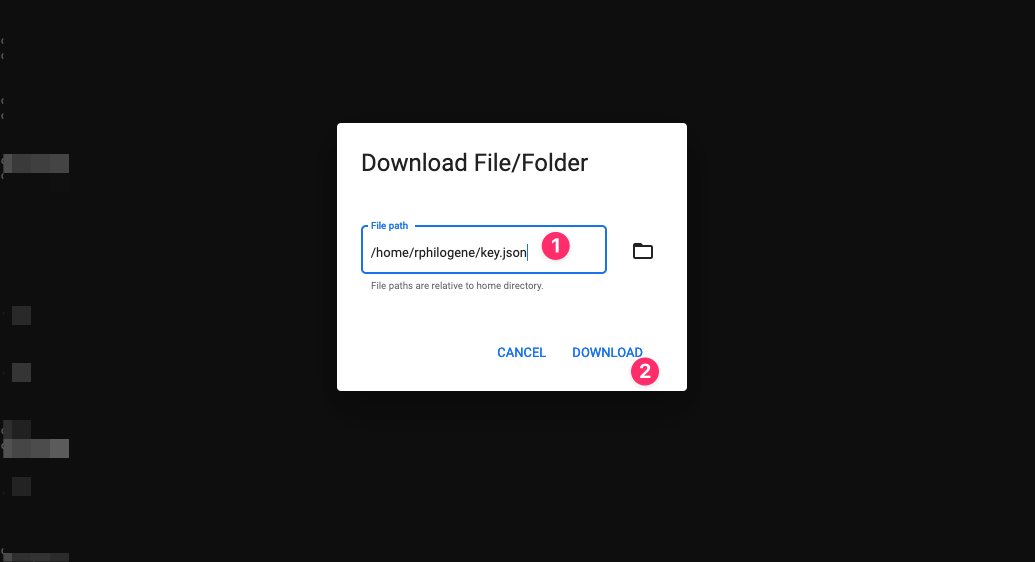
- Service Account JSON Key
constraints/iam.disableServiceAccountKeyCreation.- A GCP service account used by Qovery to manage your GKE resources
- The Qovery custom IAM role, created or updated and bound to this service account
- A Workload Identity Pool
- An AWS Workload Identity Provider that trusts the Qovery AWS deployer identity used by q-core
- A service account impersonation binding (
roles/iam.workloadIdentityUser) - An organization policy entry allowing this service account to receive 4 hour access tokens
Required Permissions
The account running the setup script must have enough permissions to configure both the GCP project and the GCP organization.At the project level, it must be able to:- enable GCP services;
- create or reuse a service account;
- create or update the Qovery custom IAM role and bind it to this service account;
- create or update a Workload Identity Pool and Provider;
- add
roles/iam.workloadIdentityUseron the service account.
constraints/iam.allowServiceAccountCredentialLifetimeExtensionfor the Qovery service account.For this last step, the account needs the Organization Policy Administrator role (roles/orgpolicy.policyAdmin) on the GCP organization, or an organization administrator must run this step for you.Prepare Your GCP Project
Create or Select Project
- Go to Google Cloud Console
- Either create a new project or select an existing one
- Ensure billing is enabled for the project
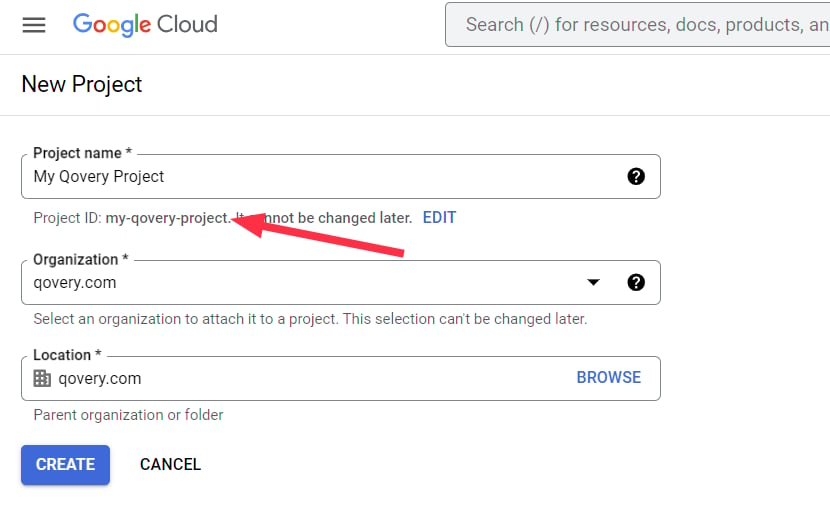
Note Your Project ID
my-company-production-123456Generate the Workload Identity Federation Setup Command
Start Cluster Creation
- Go to Qovery Console
- Go to Clusters tab
- Click Create Cluster
- Select GCP as the cloud provider
Select Workload Identity Federation
Copy the Command
YOUR_SERVICE_ACCOUNT_NAME. Always provide this service account name explicitly.Qovery requires 4 hour temporary tokens for GKE operations. The setup script uses default Qovery resource names, resolves the GCP organization ID from YOUR_PROJECT_ID, and configures constraints/iam.allowServiceAccountCredentialLifetimeExtension for the Qovery service account.If your project is not directly attached to an organization, or if the script cannot resolve it, rerun the command with the organization ID as the last argument.Run the Workload Identity Federation Setup Script
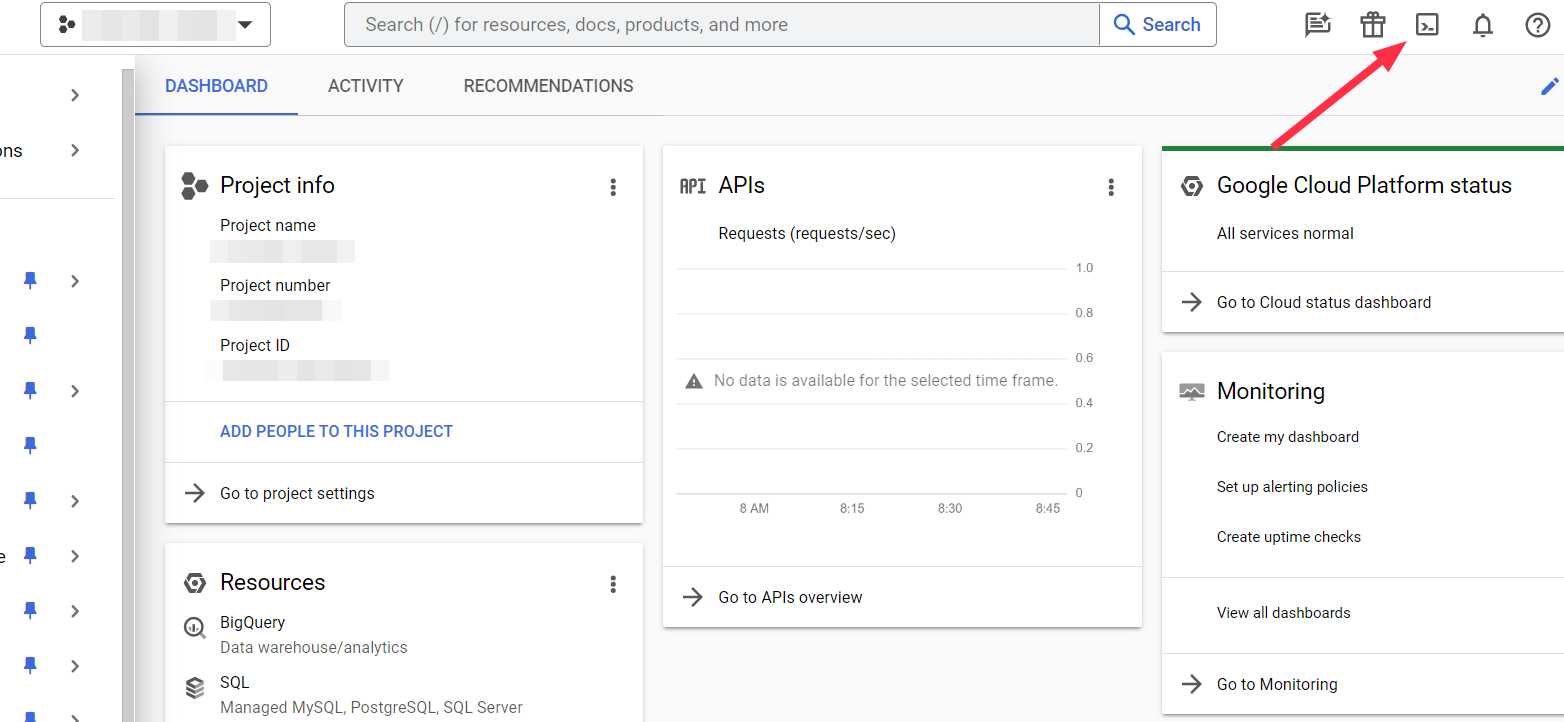
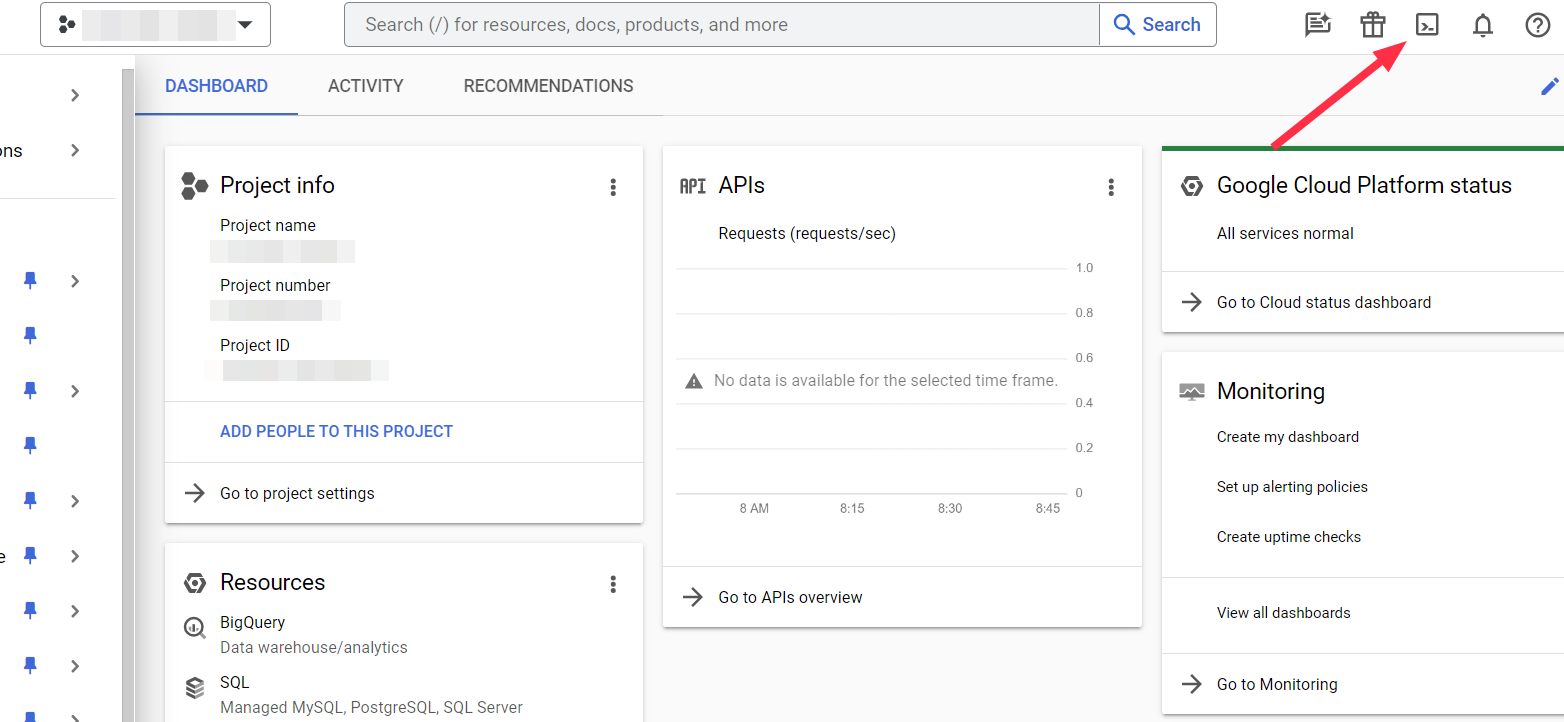
Open Google Cloud Shell
- In Google Cloud Console, click the Cloud Shell icon in the top-right
- Wait for Cloud Shell to initialize
- Ensure you’re in the correct project:
gcloud config get-value project
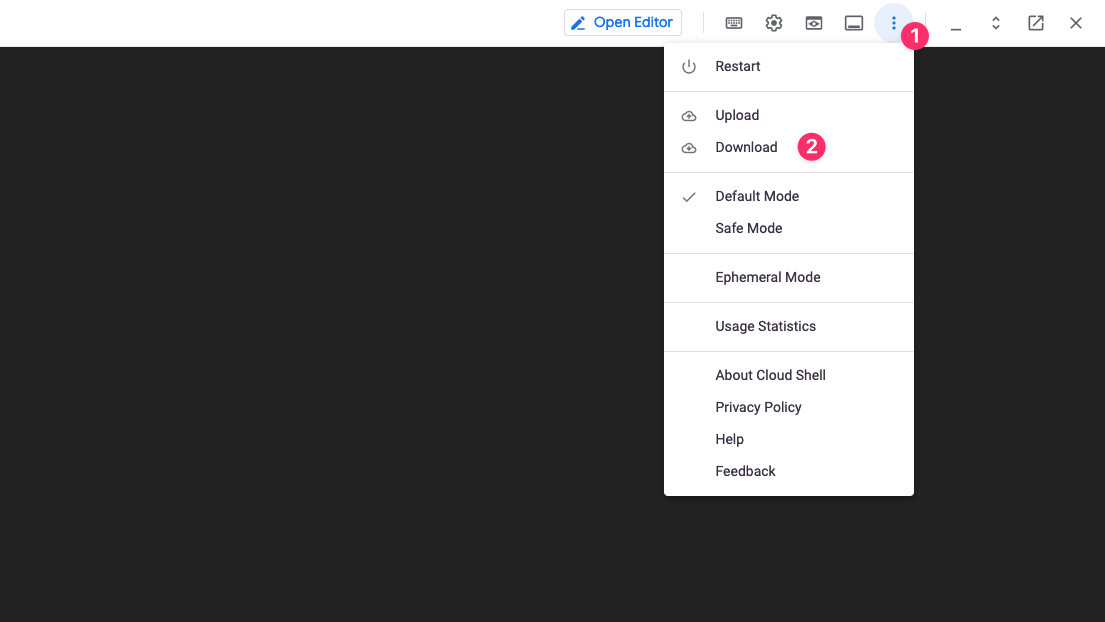
Run the Command
- Paste the command from Qovery into Cloud Shell
- Press Enter
- The script will:
- Enable required GCP APIs
- Create or reuse the Qovery service account
- Create or update the Qovery custom IAM role
- Bind the Qovery custom IAM role to the service account
- Create or reuse the Workload Identity Pool
- Create or update the AWS Workload Identity Provider
- Allow the Qovery AWS identity to impersonate the GCP service account
- Allow this service account to receive 4 hour access tokens
Save Workload Identity Federation Credentials in Qovery
- Service account email
- Workload Identity provider resource
Why is this more secure than JSON keys?
Why is this more secure than JSON keys?
What permissions does Qovery need?
What permissions does Qovery need?
Can I reuse an existing service account?
Can I reuse an existing service account?
YOUR_SERVICE_ACCOUNT_NAME. The script will reuse it, bind the Qovery custom role to it, allow the Qovery AWS deployer identity to impersonate it through roles/iam.workloadIdentityUser, and allow 4 hour access tokens for this service account.Can I keep using JSON keys?
Can I keep using JSON keys?
Step 2: Configure Your Cluster
Now configure your GKE Autopilot cluster settings in the Qovery console.Basic Configuration
Cluster Name
production-gkestaging-gcpdev-gke-uscentral1
Select Region
us-central1- Iowaus-east1- South Carolinaus-east4- Virginiaus-west1- Oregonus-west2- Los Angelesus-west3- Salt Lake Cityus-west4- Las Vegas
europe-west1- Belgiumeurope-west2- Londoneurope-west3- Frankfurteurope-west4- Netherlandseurope-west6- Zuricheurope-north1- Finland
asia-southeast1- Singaporeasia-east1- Taiwanasia-northeast1- Tokyoasia-south1- Mumbaiaustralia-southeast1- Sydney
Attach Credentials
GKE Autopilot Configuration
GKE Autopilot automatically manages your cluster’s infrastructure, including node provisioning, scaling, and maintenance.Understanding GKE Autopilot
Understanding GKE Autopilot
- Google manages all nodes, node pools, and infrastructure
- You pay only for the resources your pods request (pod-based billing)
- Automatic scaling based on workload demands
- Built-in security and compliance best practices
- Regional clusters by default (high availability)
- General Purpose (default): E2 machines for standard workloads
- Balanced: Higher CPU/memory capacity for demanding applications
- Scale-Out: Optimized for high-throughput, scale-out workloads
- Accelerator: GPU-enabled for ML/AI workloads
Networking Configuration
Qovery automatically configures GCP networking: What’s Created:- Virtual Private Cloud (VPC) with custom subnet ranges
- Cloud NAT for outbound internet connectivity
- Cloud Router for dynamic routing
- Static external IP addresses
- Firewall rules for security
- Load balancers for ingress traffic
Advanced Networking Options
Advanced Networking Options
Step 3: Deploy Your Cluster
Review Configuration
- Cluster name
- GCP project
- Region
- Networking options
Create and Deploy
Monitor Progress
- 0-5 min: Enabling GCP APIs and creating service accounts
- 5-10 min: Provisioning VPC, subnets, and networking
- 10-15 min: Creating GKE Autopilot control plane
- 15-20 min: Installing Qovery components (ingress, monitoring, etc.)
- 🟡 Creating: Infrastructure provisioning in progress
- 🟢 Running: Cluster is ready to use
- 🔴 Error: Check logs for troubleshooting
Verify Installation
What Gets Created
Qovery automatically provisions these GCP resources:Core Infrastructure
Core Infrastructure
- GKE Autopilot Cluster: Fully managed Kubernetes cluster
- Virtual Private Cloud: Isolated network for your cluster
- Subnets: Public and private subnets with IP ranges
- Cloud NAT: Outbound internet connectivity
- Cloud Router: Dynamic routing for VPC
- Firewall Rules: Security rules for traffic control
Networking
Networking
- Cloud Load Balancing: HTTP(S) and TCP/UDP load balancing
- External IP Addresses: Static IPs for ingress (optional)
- Cloud DNS: Automatic domain management
- Service Networking: Private service connections
Compute
Compute
- Autopilot-Managed Nodes: Automatically provisioned and scaled
- Persistent Disks: SSD storage for applications
- Container Registry: Artifact Registry for container images
- Compute Classes: E2, N2, C3 machines based on workload needs
Qovery Components
Qovery Components
- NGINX Ingress Controller: HTTP/HTTPS routing
- Cert-Manager: Automatic SSL/TLS certificates
- Qovery Agent: Cluster management and monitoring
- Metrics Server: Resource usage metrics
- DNS Management: Automatic domain configuration
Post-Installation Steps
Once your cluster is running:Deploy Your First Application
Configure Custom Domain
Set Up Monitoring
Configure Backups
Troubleshooting
Credential Creation Failed
Credential Creation Failed
- Verify you have Owner or Editor role in the GCP project
- Check that billing is enabled for the project
- Ensure the project ID is correct (use project ID, not project name)
- Try running the script again - API enablement can take a few minutes
Cluster Creation Stuck
Cluster Creation Stuck
- Check GCP quotas for your project (vCPUs, IPs, disks)
- Verify the selected region has GKE availability
- Check GCP Status Dashboard for outages
- Contact Qovery support if issue persists
Insufficient Quota
Insufficient Quota
- Check your quotas: console.cloud.google.com/iam-admin/quotas
- Request quota increase (usually approved instantly for established accounts)
- Try a different region with more available capacity
- Reduce your workload’s resource requests
- CPUs (all regions)
- In-use IP addresses
- Persistent Disk SSD (GB)
- NVIDIA GPUs (if using accelerators)
API Not Enabled
API Not Enabled
- The installation script should enable all required APIs
- Manually enable missing APIs in API Library
- Required APIs:
- Kubernetes Engine API
- Compute Engine API
- Artifact Registry API
- Cloud Storage API
- Cloud Resource Manager API
- Cloud Run API
Network Configuration Issues
Network Configuration Issues
- Verify Cloud NAT is properly configured
- Check firewall rules in VPC settings
- Ensure VPC peering is set up correctly (if using existing VPC)
- Test connectivity from a pod:
kubectl run -it debug --image=nicolaka/netshoot --rm
Advanced Configuration
VPC Peering
Connect your GKE cluster to existing GCP resources:- Navigate to VPC Network Peering in GCP Console
- Create peering connection from Qovery VPC to your VPC
- Configure firewall rules for traffic
- Update routes if necessary
- Test connectivity
Using Existing VPC
Deploy Qovery into your own VPC:Spot Pods (Preemptible VMs)
Save up to 91% on compute costs:- Add node selector to your deployments:
- Ensure your application handles interruptions gracefully
- Use for stateless, fault-tolerant workloads only
Best Practices
Use Spot Pods Wisely
Right-Size Resources
Enable Monitoring
Implement RBAC
Regular Updates
Backup Strategy
Next Steps
Deploy Your First App
Configure RBAC
Set Up CI/CD
Monitor Your Cluster
Additional Resources
- GKE Autopilot Documentation
- GCP Pricing Calculator
- GCP Free Tier
- Qovery Status Page
- Qovery Kubernetes Changelog - Kubernetes cluster related updates